
 WorldTimeMods · 26.x
adds the time spent in the world
Gratuit12 téléchargements

Easy Subtitle adds support for synchronized subtitles in Minecraft, allowing dialogue and spoken audio to be displayed on screen at the right time. It makes…
Téléchargement direct depuis Modrinth · 4 téléchargements
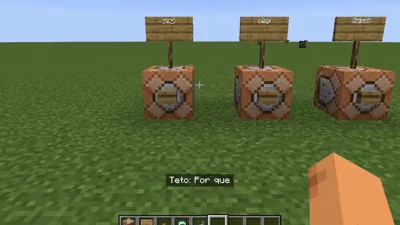
Easy Subtitle (mod) est une création de GYPSTUDIOS. Easy Subtitle adds support for synchronized subtitles in Minecraft, allowing dialogue and spoken audio to be displayed on screen at the right time. It makes…
Versions prises en charge : Minecraft 1.20. On compte 4 téléchargements sur Modrinth. La dernière mise à jour date du 15/10/2026.
La plus récente est 1.0.0, sortie le 14/10/2026. Elle est faite pour Minecraft 1.20.1. Elle fonctionne sur Fabric. Le téléchargement fait 85 KB.
| Version | Publié | Minecraft | Type |
|---|---|---|---|
1.0.0 | 14/10/2026 | 1.20.1 | Stable |
#
Easy Subtitle is a Minecraft mod that adds support for synchronized subtitles and audio playback, allowing you to display timed dialogue, character lines, and other text directly on the screen.
The mod is designed for map makers, server developers, content creators, and anyone who wants to create more immersive experiences in Minecraft, such as cinematic scenes, story-driven adventures, character dialogue, music performances, or interactive events.
When you launch Minecraft, Easy Subtitle creates a SubsSounds folder inside your .minecraft directory. Inside this folder, you can organize your audio and subtitle files into separate folders.
Each subtitle folder can contain an audio file named sound.ogg and a subtitle file named sub.lrc or sub.json. If both subtitle files exist, sub.json takes priority. (For servers, each player must have their own copy of each subtitle folder.)
Once your files are ready, use the /subtitulo play command to start playback for the selected players.
Easy Subtitle makes it simple to add timed dialogue and audio-based storytelling to Minecraft without manually displaying every subtitle in-game.
When you launch Minecraft, Easy Subtitle automatically creates a SubsSounds folder inside your .minecraft directory.
#
Inside SubsSounds, create a folder for each subtitle track you want to use. Give the folder a name of your choice. (The name must be in lowercase.) Inside that folder, add the audio file you want to play and name it sound.ogg.
You can convert your audio to OGG format using any online audio converter, or export it directly as an .ogg file from your audio editing software.
Next, create a file named sub.lrc in the same folder. You can edit this file using Notepad, Visual Studio Code, or any other text editor. This is where you will configure your subtitles, animations, colors, and synchronization.
Your folder structure should look like this:
.minecraft/
└── SubsSounds/
└── MySubtitle/
├── sound.ogg
└── sub.lrc
Replace MySubtitle with the name you want to use for your subtitle track.
At the beginning of your sub.lrc file, you can configure the following options.
Fade effect
fade = true
Set this to false to disable the fade effect.
Typewriter effect
letra_por_letra = true
Set this to false to disable the typewriter effect, which displays the text one character at a time.
You can adjust the typing speed using the following option:
velocidad = 30
Change the value to adjust the speed of the typewriter effect.
To repeat the audio and subtitles continuously, enable looping:
bucle = true
Set this to false if you do not want playback to loop. When looping is enabled, playback will continue until you stop it manually.
Adjust the audio playback volume using:
volumen = 1.0
For example, 1.0 represents the default volume level. You can change this value to adjust the playback volume.
To change the color of the subtitle text, use:
color = blanco
To change the color of the speaker's name, use:
color_nombre = amarillo
Easy Subtitle supports the following predefined colors:
You can also use hexadecimal color codes, such as #FF8800, to choose a custom color.
Here is an example of a complete configuration for your sub.lrc file:
fade = false
letra_por_letra = false
velocidad = 30
bucle = false
volumen = 1.0
color = blanco
color_nombre = blanco
You can modify these values according to your preferences.
After configuring the options, you can add your subtitle lines below them. Each line can contain a timestamp, an optional speaker name, and the text you want to display.
The timestamp determines when the subtitle appears during audio playback.
Easy Subtitle supports timestamps such as:
[00:07.27]
[00:02:00]
[01:00.00]
Timestamps use the following format:
[minutes:seconds.centiseconds]
For example:
A timestamp such as [01:04.00] means 1 minute and 4 seconds.
Note: Timestamps can use different formats, depending on the precision and duration required. For example, [00:07.27] represents 7.27 seconds, while [00:02:00] represents 2 minutes.
You can optionally add the name of the person speaking before the subtitle text. This is useful for dialogues, narrated scenes, or situations where multiple characters speak.
For example:
[00:10.00] [Narrator] Wait, let me check.
[00:15.00] [Narrator] It's right here.
If you do not want to display a speaker name, simply write the text after the timestamp:
[00:10.00] Wait, let me check.
Both formats are supported:
If a timestamp has no text after it, no subtitle will be displayed at that timestamp. This can be useful when you want to create pauses between dialogue lines.
For example:
[00:10.00] [Narrator] Wait, let me check.
[00:12.00]
[00:15.00] [Narrator] It's right here.
In this example, the line at 00:12.00 contains no subtitle text.
Once your file is ready, you can test your subtitles in-game using the mod's commands. You can make changes to your subtitle file and reload it to test different timings, text, and configuration options.
This makes it easier to fine-tune your subtitles without having to prepare the entire sequence perfectly before testing it.
You can also use existing .lrc lyric files instead of creating every timestamp manually. This is especially useful for songs, since many lyric websites provide lyrics with timestamps already included.
For example, you may find timed lyrics on websites such as Lyricsify.
Easy Subtitle ignores metadata tags such as [ar:...] and [ti:...], as well as word-level timestamps such as ``.
This allows you to reuse compatible LRC files and adapt them for your own Minecraft projects.
That's everything you need to get started with Easy Subtitle!
If you prefer a visual guide, we also have tutorial videos explaining how to set everything up and use the mod. Feel free to check them out if you need additional help.
Cuando inicies Minecraft, Easy Subtitle creará automáticamente una carpeta llamada SubsSounds dentro del directorio .minecraft.
#
Dentro de SubsSounds, crea una carpeta para cada pista de subtítulos que quieras utilizar. Puedes darle el nombre que prefieras. (El Nombre tiene que ser en minusculas) Dentro de esa carpeta, agrega el archivo de audio que quieras reproducir y nómbralo sound.ogg.
Puedes convertir tu audio al formato OGG utilizando cualquier convertidor de audio en línea, o exportarlo directamente como un archivo .ogg desde tu programa de edición de audio.
A continuación, crea un archivo llamado sub.lrc en la misma carpeta. Puedes editarlo con el Bloc de notas, Visual Studio Code o cualquier otro editor de texto. En este archivo configurarás los subtítulos, las animaciones, los colores y la sincronización.
La estructura de las carpetas debería verse así:
.minecraft/
└── SubsSounds/
└── MisSubtitulos/
├── sound.ogg
└── sub.lrc
Reemplaza MisSubtitulos por el nombre que quieras utilizar para tu pista de subtítulos.
Al principio de tu archivo sub.lrc, puedes configurar las siguientes opciones.
Efecto de desvanecimiento
fade = true
Cambia el valor a false si no quieres utilizar el efecto de desvanecimiento.
Efecto de escritura letra por letra
letra_por_letra = true
Cambia el valor a false para desactivar este efecto, que muestra el texto un carácter a la vez.
Puedes ajustar la velocidad de escritura mediante la siguiente opción:
velocidad = 30
Modifica el valor para ajustar la velocidad del efecto letra por letra.
Para repetir continuamente el audio y los subtítulos, activa el bucle:
bucle = true
Cambia el valor a false si no quieres que la reproducción se repita. Cuando el bucle está activado, la reproducción continuará hasta que la detengas manualmente.
Puedes ajustar el volumen del audio mediante la siguiente opción:
volumen = 1.0
Por ejemplo, 1.0 representa el nivel de volumen predeterminado. Puedes modificar este valor para ajustar el volumen de reproducción.
Para cambiar el color del texto de los subtítulos, utiliza:
color = blanco
Para cambiar el color del nombre del personaje o de la persona que habla, utiliza:
color_nombre = amarillo
Easy Subtitle admite los siguientes colores predefinidos:
También puedes utilizar códigos de color hexadecimales para elegir un color personalizado. Por ejemplo: #FF8800.
Este es un ejemplo de cómo podría quedar la configuración de tu archivo sub.lrc:
fade = false
letra_por_letra = false
velocidad = 30
bucle = false
volumen = 1.0
color = blanco
color_nombre = blanco
Puedes modificar estos valores según tus preferencias.
Después de configurar las opciones, puedes agregar las líneas de tus subtítulos debajo de ellas. Cada línea puede contener una marca de tiempo, un nombre opcional para quien habla y el texto que quieres mostrar.
La marca de tiempo determina cuándo aparecerá el subtítulo durante la reproducción del audio.
Easy Subtitle admite marcas de tiempo como las siguientes:
[00:07.27]
[00:02:00]
[01:00.00]
El formato de las marcas de tiempo es el siguiente:
[minutos:segundos.centésimas]
Por ejemplo:
Una marca de tiempo como [01:04.00] representa 1 minuto y 4 segundos.
Nota: Las marcas de tiempo pueden utilizar distintos formatos, dependiendo de la precisión y la duración necesarias. Por ejemplo, [00:07.27] representa 7,27 segundos, mientras que [00:02:00] representa 2 minutos.
Puedes añadir opcionalmente el nombre de la persona que hab
Écrite par GYPSTUDIOS. À lire avec les images sur Modrinth.
Ce mod est nécessaire sur le serveur et chez chaque joueur qui rejoint.
Installe Fabric pour Minecraft 1.20.
Ajoute les mods dont il a besoin : API Fabric.
Télécharge le fichier .jar depuis Modrinth et place-le dans le dossier mods de ton répertoire .minecraft.
Lance Minecraft avec le profil Fabric.
Plus simple : dans Prism Launcher ou la Modrinth App, cherche Easy Subtitle dans les mods de ton instance et clique sur Install. Le loader et les mods requis sont ajoutés pour toi.
| Ressource | Téléchargements | Versions | Mise à jour | Prix |
|---|---|---|---|---|
| Easy Subtitlecelle que tu regardais | 4 | 1.20 | il y a 27 jours | Gratuit |
| WorldTimesuheckii | 12 | 26.x | 19 sept. 2026 | Gratuit |
 TrashSlotBlayTheNinth | 6.7M | 1.18 – 26.x | il y a 9 jours | Gratuit |
 EssftonYedel | 5 | 1.8 | il y a 23 jours | Gratuit |
Pas encore. La version la plus récente prise en charge est Minecraft 1.20.
Oui. Easy Subtitle se télécharge gratuitement sur Modrinth.
Les deux. Le serveur et chaque joueur doivent avoir Easy Subtitle installé.
Oui : Fabric API. Installe-le avant Easy Subtitle.
Oui. La dernière mise à jour date des dernières 24 heures.
Les plus proches sont WorldTime, TrashSlot et Essfton. Comparer toutes les alternatives
WorldTimeMods · 26.xadds the time spent in the world
TrashSlotMods · 1.18 – 26.xAdds a draggable trash slot to all inventory screens. Press T to toggle.
EssftonMods · 1.8Adds enhancements to Super Secret Settings
 Elytra SlotMods · 1.13 – 1.21
Adds accessory support to the elytra so you can fly and wear chest armor at the same time. Formerly known as Curious Elytra and Elytra Trinket.
 Menu TabsMods · 26.x
Adds Tabs to all menus to navigate more easily.
 Tiny Item AnimationsMods · 1.18 – 1.21
Adds little animations when you pick up or insert items with your mouse.
Connecte-toi pour laisser un avis.