NouveauCraftRank SitesSite web et boutique gratuitsCrée la tienne ›
AshlarLogiciel serveur gratuit basé sur Paper, avec protection DDoS et anti-backdoor Voir Ashlar ›Security RadarA free check of your server's login, anti-bot and proxy settings, only with your OK Voir comment ça marche ›CommunautéPose des questions, partage tes constructions et trouve des joueurs Rejoindre le forum ›
Ressources / Shaders / Color Palette Switcher

Color Palette Switcher

Allows you to pick your own palette for the game to use. Good for taking pretty screenshots. Color palette changer.

ShadersGratuit1.20 – 26.x
par AlphaLeoli · repris depuis Modrinth
Télécharger ›

Téléchargement direct depuis Modrinth · 4,232 téléchargements
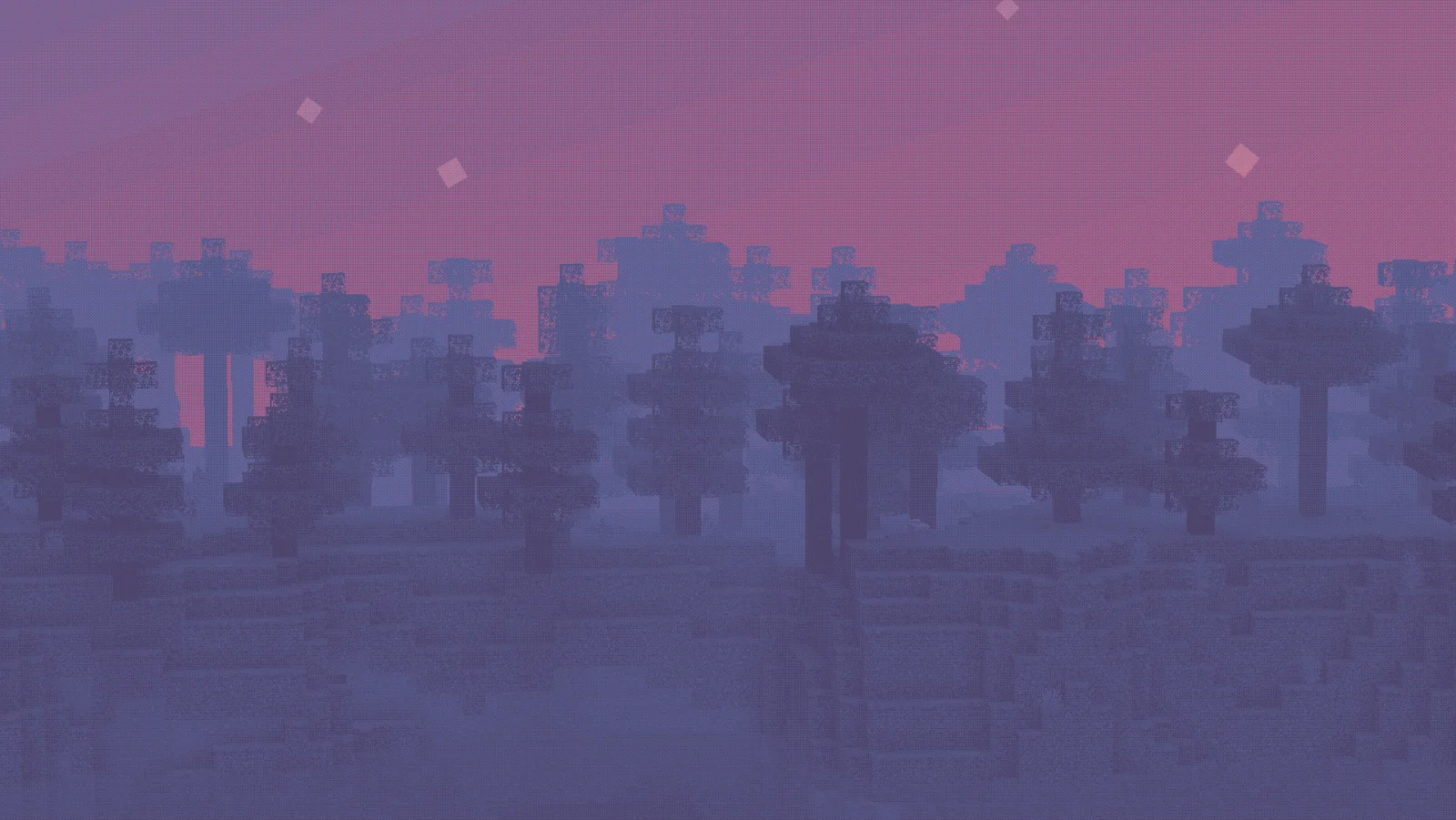
Color Palette Switcher, capture 1Color Palette Switcher, capture 2Color Palette Switcher, capture 3

Ce qu'il fait

Color Palette Switcher (pack de shaders) est une création de AlphaLeoli. Allows you to pick your own palette for the game to use. Good for taking pretty screenshots. Color palette changer.

Versions prises en charge : Minecraft 1.20 – 26.x. On compte 4,232 téléchargements sur Modrinth. La dernière mise à jour date du 16/08/2026.

Versions prises en charge

26.x1.211.20

Historique des versions

Color Palette Switcher a publié 3 versions sur Modrinth depuis le 08/09/2025. L'une d'elles est sortie au cours de l'année passée. La plus récente est 1.1.1, sortie le 16/08/2026. Elle est faite pour Minecraft 1.20.2 – 1.21.11. Elle fonctionne sur Minecraft. Le téléchargement fait 594 KB.

VersionPubliéMinecraftType
1.1.116/08/20261.20.2 – 1.21.11Bêta
1.1.007/10/20251.21.2 – 1.21.10Stable
1.0.008/09/20251.21.2 – 1.21.8Stable
Description de l'auteur sur Modrinth

Showcase

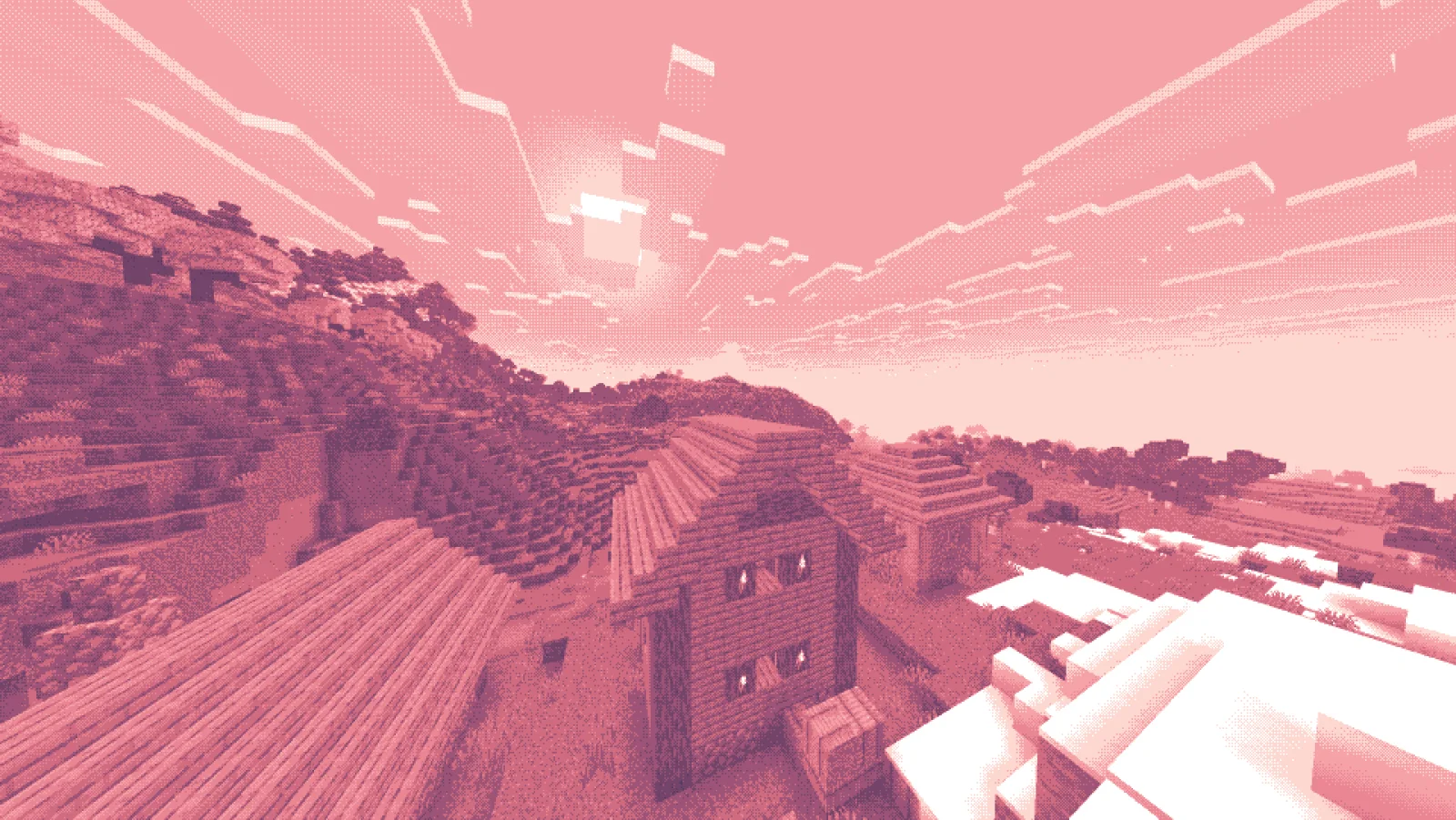
This image was taken using a monochromatic color palette on color mode 0 (Closest Luminance)

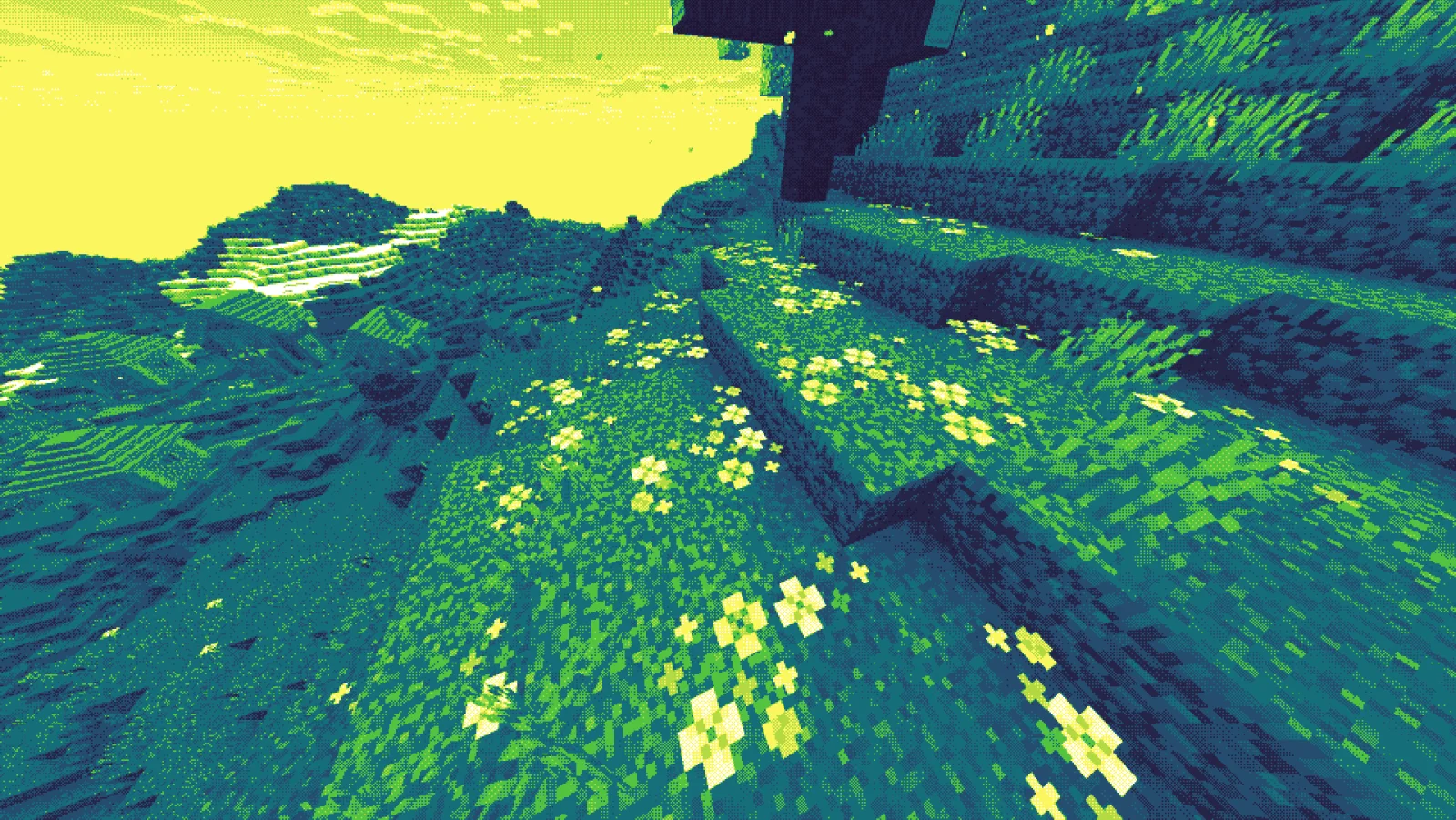
This image was taken using a polychromatic color palette on color mode 1 (Closest Color)

There are more images to show you what the pack looks like, all you need to do is go look at the gallery

Description

This is a texture pack that allows you to make Minecraft use whatever color palette you want. You can have up to 32 colors in a single palette, which may get expanded upon in a future update. You can use respackopts if you want an easier experience configuring the pack, but it's entirely possible (and quite simple) to do without it. You can find instructions on using the pack below, for both with respackopts and without.

This texture pack was inspired in part by Acerola's video about color. I recommend you give it a watch, because very near the beginning it shows both how this pack works in concept, and it's also very interesting. Note that this pack is not a LUT (Lookup Table) pack, and instead chooses the colors in real time using one of two color modes.

How to Use (No Respackopts)

  1. Install and apply the pack as normal. By default, it will be using the Starry color palette with Dither Mode 2, which you can see a preview of here
  2. In order to configure the pack, you must open the resourcepack. Once you are in, click on assets, minecraft, textures, effect. This is where you will find all the palettes that are included by default, and also where you can add your own. Palettes should be sized anywhere from 1x1 to 32x1, and you can find many premade palettes on Lospec. Just make sure you download the PNG Image (1x) version of whatever palette you want.
  3. After importing your preferred palette, you need to apply it. For this, go back to the start of the texture pack. If you are on 1.21.2 or above, go into (your version), assets, minecraft, post_effect, then transparency.json. If you are on 1.21.1 or below, go into 1_20_5-1_21_1, assets, minecraft, shaders, post, then transparency.json. For both versions, you must then press ctrl+f on your keyboard and search up starry. You will replace that with the name of your palette. Note that you cannot include spaces, so you should probably replace them with an underscore. You do not need to change the width of the texture, just leave it as is.
  4. After changing the name, make sure to save the file. Then, head back into Minecraft and press ctrl+f to reload your resources. You should see the game using your color palette.
  5. If it doesn't look quite right, then open the texture pack back up again. This time, head to assets, minecraft, shaders, include, then config.glsl. Open the file, and you should see a list of options. Above each option will have text telling you how to configure it and what it does. If you're using a monochrome color palette (single colored), then make sure the COLOR_MODE option is set to 0. If not, set it to 1. If you're using a multi-colored color palette and you have it set to the right value, then try changing the OKLAB_COMPARISONS option to 0, or the other way around if it is already.

How to Use (Respackopts)

  1. This tutorial is for people who have the repackopts mod installed. If you are not using this, either follow the tutorial above or install it using the link.
  2. First, make sure you have the texture pack properly installed (you should see your game change to some pinkish colors)
  3. If you don't want to upload your own color palette and instead want to choose one of the defaults (some are shown in the gallery), click the top left of the respackopts settings screen where it says Presets. Here, you can choose between some premade ones.
  4. You can choose between a few different options. Hovering over them will tell you what they are used for.
  5. If at this point you would like to upload your own palette, you must first open the texture pack folder. Then, go to assets, minecraft, textures, then effect. In here, you should see many color palettes that are preinstalled. In order to upload your own, you must choose (or create) a color palette. A good website for choosing premade color palettes is called Lospec.
  6. Make sure the palette you downloaded or created is between the size of 1x1 and 32x1 pixels, otherwise your extra colors won't work. It must also be a png, not a jpg or any other image file format. Another thing to remember is the name must not include spaces or special characters, so make sure you remove any special characters and replace spaces with underscores. After making sure your palette follows all these rules, you can upload it. Make sure you remember what you named it.
  7. After uploading your custom color palette, you must go back into the respackopts settings. There, you change the color palette that it's currently using to the name of your own file. If everything was done correctly, you should be able to see your color palette ingame! If it doesn't look quite right, try playing around with the settings until it looks good. If you have any trouble, you can refer to the troubleshooting section below.

Troubleshooting

  1. If you can't even find the pack in your pack list, it might be because you have recursive resources. If you have it, click "Folder View" in the bottom left and then search for it manually. It's called "Palette Switcher".
  2. If you changed a setting in respackopts and it doesn't show the change ingame, try reloading resources manually by clicking F3+T on your keyboard. You can also install a mod like Shader Reload (for versions 1.21.5 and below) or SUMR (for versions 1.21.6 and above), which will make it load a lot quicker by pressing F3+R to reload it instead.
  3. If this did not fix your issue, have a look at the support section below.

Support

Join My Discord

  • Report bugs
  • Create suggestions
  • Vote on future packs
  • Interact with the community
  • Ask for help with texture packs
  • This is the place to ask if you can use this pack in your own pack

Check out The Repository

  • Report bugs
  • Create suggestions
  • Contribute by creating a pull request

alphaleo.li/resourcepacks

Écrite par AlphaLeoli. À lire avec les images sur Modrinth.

Comment installer Color Palette Switcher

  1. Installe Iris (avec Sodium) ou OptiFine pour ta version de Minecraft : les shaders ont besoin de l'un des deux.

  2. Télécharge le fichier .zip depuis Modrinth. Ne le décompresse pas.

  3. Dans Minecraft, ouvre Options, puis Paramètres vidéo, puis Shaders, et clique sur Ouvrir le dossier des shaders.

  4. Dépose le fichier .zip dans ce dossier, choisis Color Palette Switcher dans la liste et clique sur Terminé.

  5. Les shaders sollicitent beaucoup la carte graphique. Si le jeu ralentit, choisis un profil plus bas dans leurs réglages.

Compatibilité

Versions de Minecraft
26.x, 1.21, 1.20
Édition
Java
Nécessite
Rien d'autre
Licence
Utilisation gratuite
Prix
Gratuit
Suivi
Mis à jour activement (14/11/2026)

Color Palette Switcher comparé à des ressources similaires Comparer toutes les alternatives

RessourceTéléchargementsVersionsMise à jourPrix
Color Palette Switchercelle que tu regardais4,2321.20 – 26.x16 août 2026Gratuit
Super Duper VanillaEldeston8.3M1.13 – 1.218 juil. 2025Gratuit
Krpmon LiteTHEHope22K1.21 – 26.xil y a 23 joursGratuit
NotEnoughGlintsdioa16,9911.21 – 26.xil y a 19 joursGratuit

Questions

Est-ce que Color Palette Switcher fonctionne sur Minecraft 26.x ?

Oui. Color Palette Switcher prend en charge Minecraft 26.x. Toutes les versions prises en charge : 26.x, 1.21, 1.20.

Est-ce que Color Palette Switcher est gratuit ?

Oui. Color Palette Switcher se télécharge gratuitement sur Modrinth.

Color Palette Switcher est-il encore mis à jour ?

Oui. La dernière mise à jour date des dernières 24 heures.

Quelles sont les meilleures alternatives à Color Palette Switcher ?

Les plus proches sont Super Duper Vanilla, Krpmon Lite et NotEnoughGlints. Comparer toutes les alternatives

Alternatives à Color Palette Switcher

Hyperion ShadersShaders · 1.17 – 26.x

An enhanced edition of Photon Shaders featuring critical fixes for beacon beams across all dimensions, entity nametag darkening, and improved rendering.
Gratuit4,443 téléchargements
Aurora's ShadersShaders · 1.20 – 1.21

Based on Complimentary Unbound, a beautifully colorful Vanilla+ shader meant for making the game look good while maintaining good performance and vanilla feel.
Gratuit951,117 téléchargements
Tricked ShadersShaders · 1.8 – 26.x

Based on Mellow Shader, a modified version to reduce brightness and make the game look better while maintaining good performance and vanilla feel.

Gratuit96,092 téléchargements
Comparer toutes les alternatives ›

Avis

–★★★★★
0 avis
50
40
30
20
10

Connecte-toi pour laisser un avis.