NeuCraftRank SitesKostenlose Website mit ShopMach deine ›
AshlarKostenlose Serversoftware auf Paper-Basis mit DDoS- und Backdoor-Schutz Ashlar ansehen ›Security RadarA free check of your server's login, anti-bot and proxy settings, only with your OK So funktioniert es ›CommunityStell Fragen, teile Bauten und finde Leute zum Spielen Zum Forum ›
Ressourcen / Shader / Color Palette Switcher

Color Palette Switcher

Allows you to pick your own palette for the game to use. Good for taking pretty screenshots. Color palette changer.

ShaderKostenlos1.20 – 26.x
von AlphaLeoli · übernommen von Modrinth
Herunterladen ›

Direkter Download von Modrinth · 4,227 Downloads
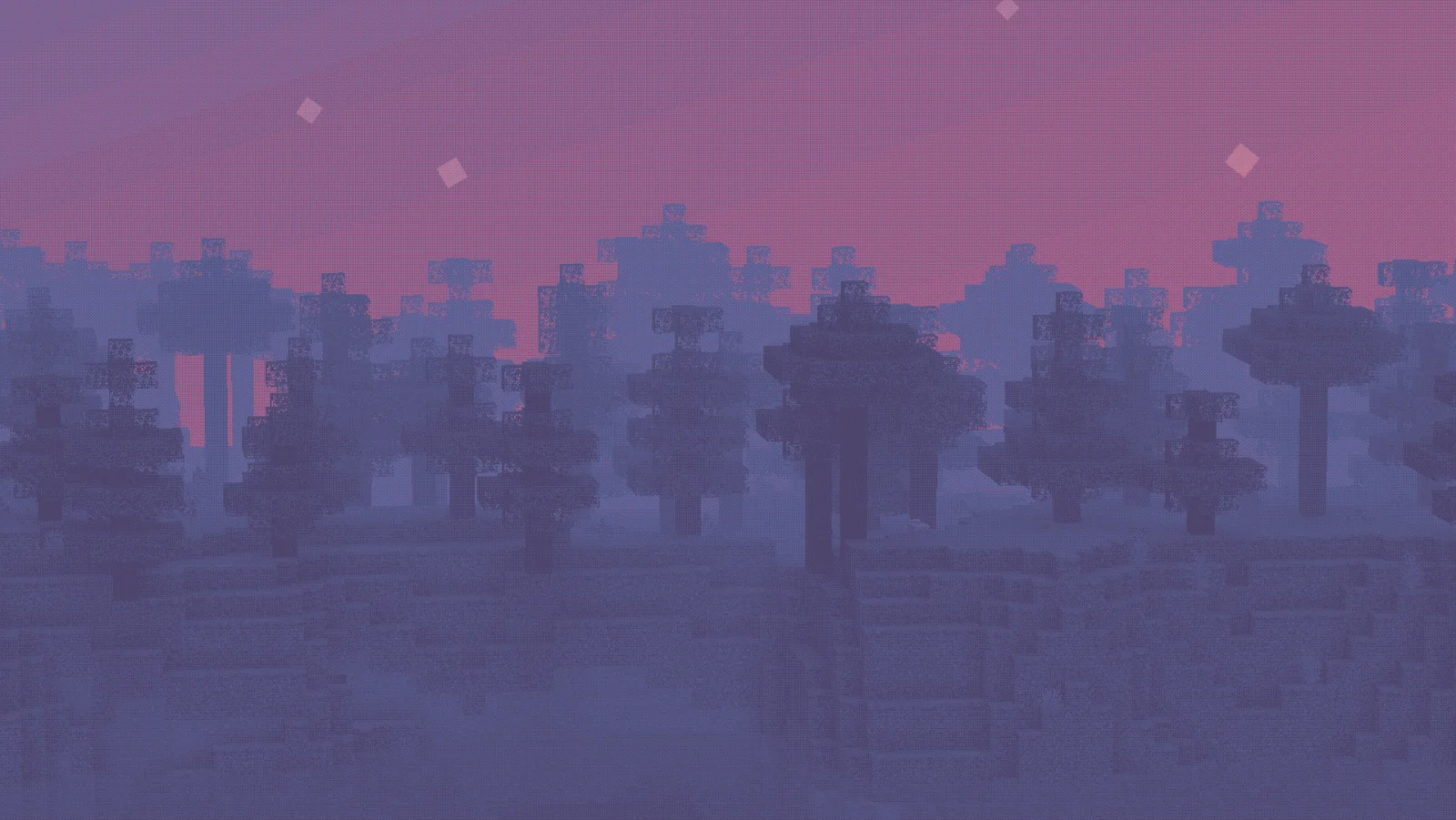
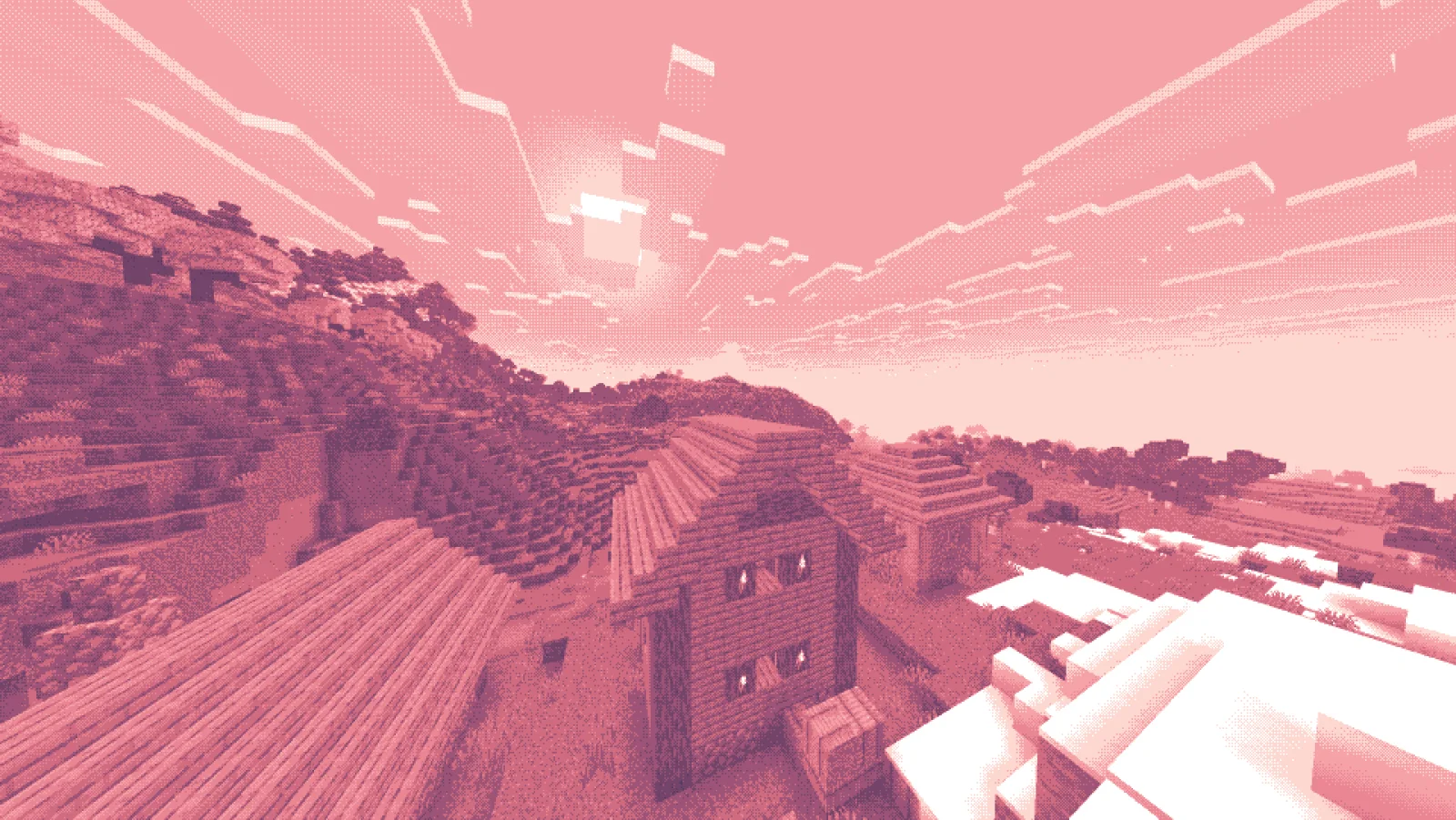
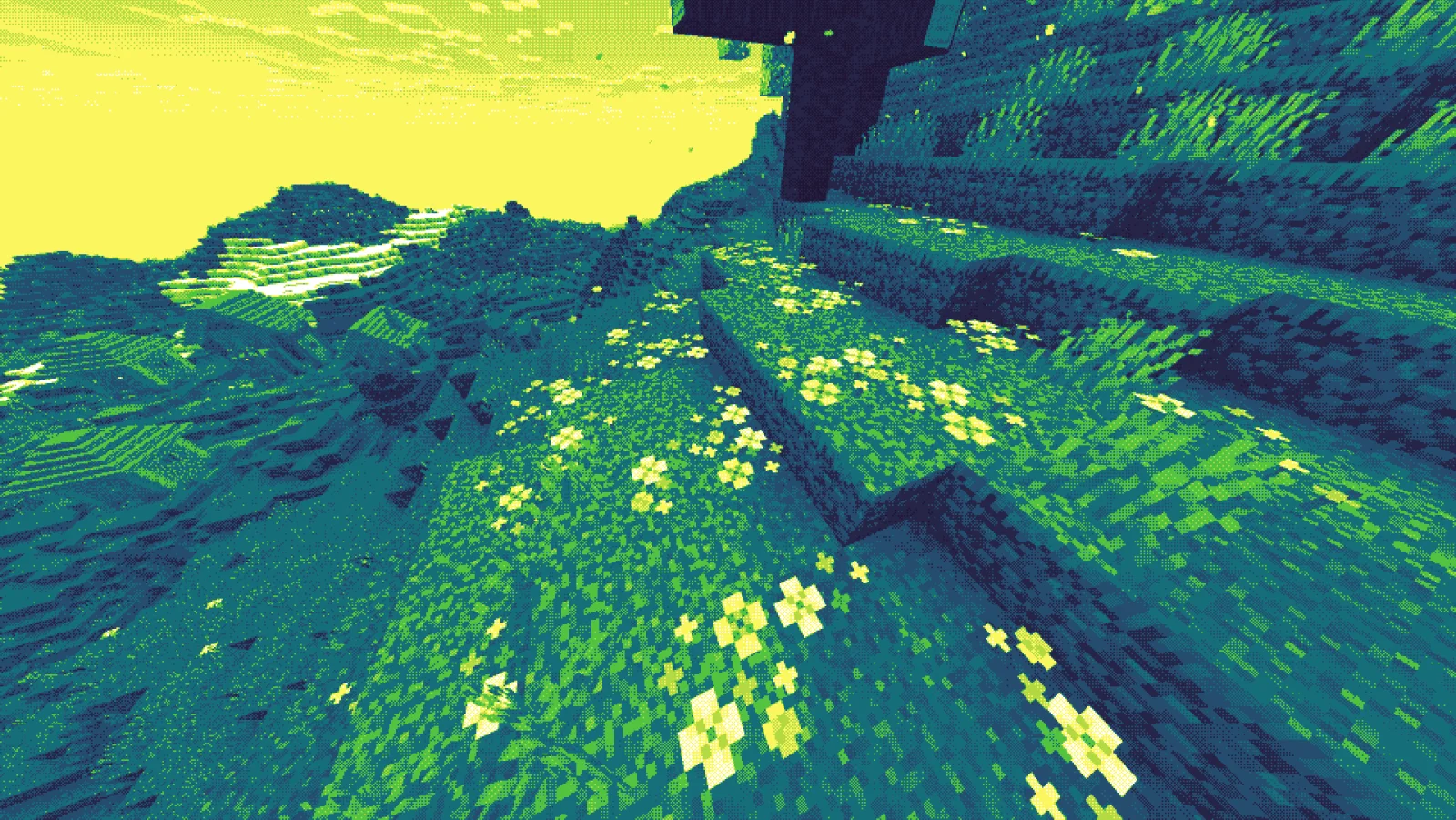
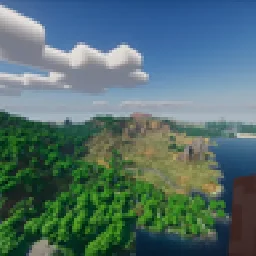
Color Palette Switcher – Screenshot 1Color Palette Switcher – Screenshot 2Color Palette Switcher – Screenshot 3

Was er macht

Color Palette Switcher (Shaderpack) stammt von AlphaLeoli. Allows you to pick your own palette for the game to use. Good for taking pretty screenshots. Color palette changer.

Unterstützt wird Minecraft 1.20 – 26.x. Auf Modrinth gibt es 4,227 Downloads. Das letzte Update erschien am 16.08.2026.

Unterstützte Versionen

26.x1.211.20

Versionsverlauf

Color Palette Switcher hat seit 08.09.2025 3 Versionen auf Modrinth veröffentlicht. Eine davon erschien im letzten Jahr. Die neueste ist 1.1.1, erschienen am 16.08.2026. Sie ist für Minecraft 1.20.2 – 1.21.11 gemacht. Sie läuft auf Minecraft. Der Download ist 594 KB groß.

VersionVeröffentlichtMinecraftTyp
1.1.116.08.20261.20.2 – 1.21.11Beta
1.1.007.10.20251.21.2 – 1.21.10Release
1.0.008.09.20251.21.2 – 1.21.8Release
Beschreibung des Autors auf Modrinth

Showcase

This image was taken using a monochromatic color palette on color mode 0 (Closest Luminance)

This image was taken using a polychromatic color palette on color mode 1 (Closest Color)

There are more images to show you what the pack looks like, all you need to do is go look at the gallery

Description

This is a texture pack that allows you to make Minecraft use whatever color palette you want. You can have up to 32 colors in a single palette, which may get expanded upon in a future update. You can use respackopts if you want an easier experience configuring the pack, but it's entirely possible (and quite simple) to do without it. You can find instructions on using the pack below, for both with respackopts and without.

This texture pack was inspired in part by Acerola's video about color. I recommend you give it a watch, because very near the beginning it shows both how this pack works in concept, and it's also very interesting. Note that this pack is not a LUT (Lookup Table) pack, and instead chooses the colors in real time using one of two color modes.

How to Use (No Respackopts)

  1. Install and apply the pack as normal. By default, it will be using the Starry color palette with Dither Mode 2, which you can see a preview of here
  2. In order to configure the pack, you must open the resourcepack. Once you are in, click on assets, minecraft, textures, effect. This is where you will find all the palettes that are included by default, and also where you can add your own. Palettes should be sized anywhere from 1x1 to 32x1, and you can find many premade palettes on Lospec. Just make sure you download the PNG Image (1x) version of whatever palette you want.
  3. After importing your preferred palette, you need to apply it. For this, go back to the start of the texture pack. If you are on 1.21.2 or above, go into (your version), assets, minecraft, post_effect, then transparency.json. If you are on 1.21.1 or below, go into 1_20_5-1_21_1, assets, minecraft, shaders, post, then transparency.json. For both versions, you must then press ctrl+f on your keyboard and search up starry. You will replace that with the name of your palette. Note that you cannot include spaces, so you should probably replace them with an underscore. You do not need to change the width of the texture, just leave it as is.
  4. After changing the name, make sure to save the file. Then, head back into Minecraft and press ctrl+f to reload your resources. You should see the game using your color palette.
  5. If it doesn't look quite right, then open the texture pack back up again. This time, head to assets, minecraft, shaders, include, then config.glsl. Open the file, and you should see a list of options. Above each option will have text telling you how to configure it and what it does. If you're using a monochrome color palette (single colored), then make sure the COLOR_MODE option is set to 0. If not, set it to 1. If you're using a multi-colored color palette and you have it set to the right value, then try changing the OKLAB_COMPARISONS option to 0, or the other way around if it is already.

How to Use (Respackopts)

  1. This tutorial is for people who have the repackopts mod installed. If you are not using this, either follow the tutorial above or install it using the link.
  2. First, make sure you have the texture pack properly installed (you should see your game change to some pinkish colors)
  3. If you don't want to upload your own color palette and instead want to choose one of the defaults (some are shown in the gallery), click the top left of the respackopts settings screen where it says Presets. Here, you can choose between some premade ones.
  4. You can choose between a few different options. Hovering over them will tell you what they are used for.
  5. If at this point you would like to upload your own palette, you must first open the texture pack folder. Then, go to assets, minecraft, textures, then effect. In here, you should see many color palettes that are preinstalled. In order to upload your own, you must choose (or create) a color palette. A good website for choosing premade color palettes is called Lospec.
  6. Make sure the palette you downloaded or created is between the size of 1x1 and 32x1 pixels, otherwise your extra colors won't work. It must also be a png, not a jpg or any other image file format. Another thing to remember is the name must not include spaces or special characters, so make sure you remove any special characters and replace spaces with underscores. After making sure your palette follows all these rules, you can upload it. Make sure you remember what you named it.
  7. After uploading your custom color palette, you must go back into the respackopts settings. There, you change the color palette that it's currently using to the name of your own file. If everything was done correctly, you should be able to see your color palette ingame! If it doesn't look quite right, try playing around with the settings until it looks good. If you have any trouble, you can refer to the troubleshooting section below.

Troubleshooting

  1. If you can't even find the pack in your pack list, it might be because you have recursive resources. If you have it, click "Folder View" in the bottom left and then search for it manually. It's called "Palette Switcher".
  2. If you changed a setting in respackopts and it doesn't show the change ingame, try reloading resources manually by clicking F3+T on your keyboard. You can also install a mod like Shader Reload (for versions 1.21.5 and below) or SUMR (for versions 1.21.6 and above), which will make it load a lot quicker by pressing F3+R to reload it instead.
  3. If this did not fix your issue, have a look at the support section below.

Support

Join My Discord

  • Report bugs
  • Create suggestions
  • Vote on future packs
  • Interact with the community
  • Ask for help with texture packs
  • This is the place to ask if you can use this pack in your own pack

Check out The Repository

  • Report bugs
  • Create suggestions
  • Contribute by creating a pull request

alphaleo.li/resourcepacks

Geschrieben von AlphaLeoli. Mit Bildern auf Modrinth lesen.

So installierst du Color Palette Switcher

  1. Installiere Iris (mit Sodium) oder OptiFine für deine Minecraft-Version: Shader brauchen eins davon.

  2. Lade die .zip-Datei von Modrinth herunter. Entpacke sie nicht.

  3. Öffne in Minecraft Optionen, dann Grafikeinstellungen, dann Shaderpacks und klicke auf Shaderpack-Ordner öffnen.

  4. Lege die .zip-Datei in diesen Ordner, wähle Color Palette Switcher in der Liste und klicke auf Fertig.

  5. Shader belasten die Grafikkarte. Wird das Spiel langsam, wähle in den Shader-Einstellungen ein niedrigeres Profil.

Kompatibilität

Minecraft-Versionen
26.x, 1.21, 1.20
Edition
Java
Benötigt
Nichts weiter
Lizenz
Kostenlos nutzbar
Preis
Kostenlos
Pflege
Wird aktiv aktualisiert (13.11.2026)

Color Palette Switcher im Vergleich mit ähnlichen Alle Alternativen vergleichen

RessourceDownloadsVersionenLetztes UpdatePreis
Color Palette Switcherdie du angesehen hast4,2271.20 – 26.x16. Aug. 2026Kostenlos
Super Duper VanillaEldeston8.3M1.13 – 1.218. Juli 2025Kostenlos
Krpmon LiteTHEHope21K1.21 – 26.xvor 22 TagenKostenlos
NotEnoughGlintsdioa16,9911.21 – 26.xvor 18 TagenKostenlos

Fragen

Funktioniert Color Palette Switcher mit Minecraft 26.x?

Ja. Color Palette Switcher unterstützt Minecraft 26.x. Alle unterstützten Versionen: 26.x, 1.21, 1.20.

Ist Color Palette Switcher kostenlos?

Ja. Color Palette Switcher kannst du kostenlos bei Modrinth herunterladen.

Wird Color Palette Switcher noch aktualisiert?

Ja. Das letzte Update kam innerhalb des letzten Tages.

Was sind die besten Alternativen zu Color Palette Switcher?

Am ähnlichsten sind Super Duper Vanilla, Krpmon Lite und NotEnoughGlints. Alle Alternativen vergleichen

Alternativen zu Color Palette Switcher

Hyperion ShadersShader · 1.17 – 26.x

An enhanced edition of Photon Shaders featuring critical fixes for beacon beams across all dimensions, entity nametag darkening, and improved rendering.
Kostenlos4,323 Downloads
Aurora's ShadersShader · 1.20 – 1.21

Based on Complimentary Unbound, a beautifully colorful Vanilla+ shader meant for making the game look good while maintaining good performance and vanilla feel.

Kostenlos950,228 Downloads
Tricked ShadersShader · 1.8 – 26.x

Based on Mellow Shader, a modified version to reduce brightness and make the game look better while maintaining good performance and vanilla feel.

Kostenlos95,860 Downloads
Alle Alternativen vergleichen ›

Bewertungen

–★★★★★
0 Bewertungen
50
40
30
20
10

Logg dich ein, um eine Bewertung zu schreiben.