
 Spatial_BlueprintMods · 1.20
Capture, preview, and rebuild structures as blueprints — with rotation, material lists, six library tabs, and server-safe uploads for Forge 1.20.1.
Free17 downloads

Spotify overlay for Minecraft: search, browse and manage your library, control playback, and host listening parties where the whole server hears the same…
Direct download from Modrinth · 8 downloads
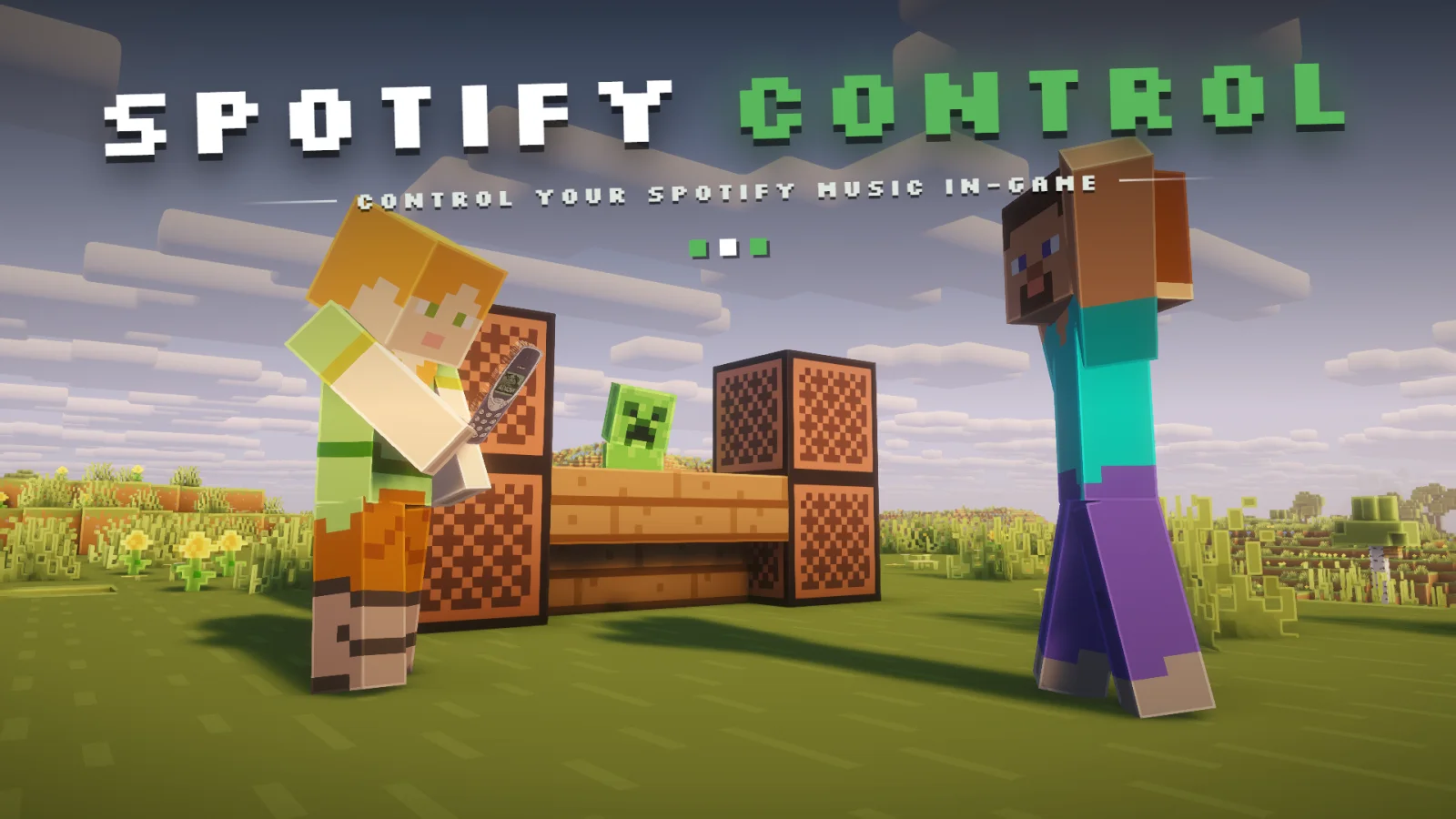
Spotify Control is a mod made by Emil_Deu. Spotify overlay for Minecraft: search, browse and manage your library, control playback, and host listening parties where the whole server hears the same…
It supports Minecraft 1.21. It has been downloaded 8 times on Modrinth. The last update came out on Nov 7, 2026.
Spotify Control has had 2 releases on Modrinth since Aug 31, 2026. 2 of them came out in the past year. The newest is 1.1, released on Nov 7, 2026. It is made for Minecraft 1.21 – 1.21.11. It runs on Fabric. The download is 422 KB.
| Version | Released | Minecraft | Type |
|---|---|---|---|
1.1 | Nov 7, 2026 | 1.21 – 1.21.11 | Beta |
1.0 | Aug 31, 2026 | 1.21 – 1.21.11 | Beta |
Spotify Control is open source. Its newest release on GitHub is SpotifyControl 1.1, published on Nov 7, 2026.
Version 1.1 brings lyrics in the world, lyrics marks in the track lists, more reliable playback when the Spotify app has just started, and plain error messages. One jar for every Minecraft version from 1.21 to 1.21.11.
File
Use it for
SpotifyControl_1.1_1.21.x_BETA.jar
The mod. Connects to your own Spotify account.
SpotifyControl_1.1_1.21.x_DEMO.jar
Screenshots only. Shows an invented library and never connects to Spotify.
Install one of them, not both: they carry the same mod id, and Fabric will refuse to load two copies.
For listening parties the same jar has to be installed on the client and on the server. Broadcast mode also needs Simple Voice Chat 2.5 or higher on both sides.
Read all release notes on GitHub
A Fabric mod that puts a Spotify client into Minecraft. Press Ctrl + M to open a full overlay in the
Spotify colour theme, log in with your own Spotify account, browse your library, search, manage
playlists and control playback without leaving the game. A listening party feature lets other players
on the server hear the same music, either through their own Spotify account or as a live audio stream
over Simple Voice Chat.
The mod talks to the official Spotify Web API. It does not decode, download or re-host Spotify audio
in sync mode, and broadcast mode captures whatever your operating system is already playing: on
Windows straight from the speakers with nothing to install, on other systems from a loopback device
you select yourself.
The world lyrics come from LRCLIB, a free and open lyrics database, because the
Spotify Web API offers no lyrics. Only the track title and the first artist are sent there, and nothing
at all once Lyrics in the world is switched off in the settings.
Now playing HUD in any corner, and the full player bar without leaving the world
Live lyrics: every word of the song appears in the world the moment it is sung
library, playlist detail view and a bottom player bar
each word on its own block, turned towards you once and then left in place. Words never cover each
other, step aside for terrain, come closer and smaller in forests and caves, and move further ahead
while you sprint. They fade out when their line ends, after a set time or beyond a set count
lyrics button next to the queue button switches the world lyrics on and off
position, BROADCAST streams the host's desktop audio to the party through Simple Voice Chat
channels so only party members hear it anywhere in the world
Mix to enable and no virtual cable to install
Library, search, listening parties and the settings, all inside the game
The mod needs a Spotify application of your own, because Spotify does not allow shipping a client ID
inside a public mod.
use that port instead.
Playback control requires Spotify Premium. With a free account the overlay still shows your library,
search results and what is currently playing, but play, pause, seek and volume calls are rejected by
the Spotify API with HTTP 403.
Spotify also needs a playback device, because the Web API controls a Spotify player rather than being
one. You do not have to manage that yourself: when you press play and nothing is running, the mod
starts the Spotify desktop app minimized in the background, waits for it to show up as a device and
moves playback there. Any other device (web player, phone, speaker) works too and can be picked from
the device menu in the player bar.
SYNC mode is the default. The host reports the current track URI and position to the server, the
server forwards it to every party member, and each member's client calls the Spotify API to play the
same track at the same position on their own account. Everyone needs their own Premium account. Audio
quality is whatever Spotify normally delivers, and no audio travels through the Minecraft server.
BROADCAST mode is for parties where the other players do not have Spotify. The client reads 20 ms
frames of 48 kHz stereo audio from the host's audio source, downmixes to mono, encodes them with the
Opus encoder provided by Simple Voice Chat, and sends them to the server. The server pushes the
frames into a Simple Voice Chat audio channel.
On Windows there is nothing to install and nothing to enable. The mod asks the sound system for the
mix that is going to the speakers and captures it there, so the audio source starts on "System sound
(automatic)" and a machine that has never been set up for this simply works. The price is that this
is the whole mix: Minecraft's own sound, notification sounds and voice chat from other applications
go out with the music. Mute what you do not want to send before starting the stream.
For Spotify and nothing else, the manual device choice is still there. Install a virtual audio cable
such as VB-Audio Virtual Cable, set Spotify alone to output to it in the Windows app volume settings
and select its input in the mod; only Spotify goes through the cable, so nothing else can leak into
the party. Stereo Mix, enabled in the Sound Control Panel, is the other manual option, but it carries
the whole desktop just as the automatic capture does.
On Linux and macOS the automatic capture does not apply and broadcast mode still needs a loopback
device, an input line that carries what the machine is playing back rather than what a microphone
hears. On Linux the "Monitor of" source of PipeWire or PulseAudio works as it is, on macOS a loopback
driver such as BlackHole does. A microphone is not a substitute: pick one and the party hears your
room instead of the music, and muting yourself in the voice chat does not help, because the capture
is a second line straight from the sound system. The mod lists the loopback devices first and marks
which entries look like an output and which look like a microphone, and it warns while streaming
from a microphone rather than claiming to send desktop audio.
Server side, config/spotifycontrol/server.json:
{
"enabled": true,
"language": "en",
"allowListeningParties": true,
"allowAudioBroadcast": true,
"maxPartySize": 20,
"broadcastRangeBlocks": 0,
"requireSameDimension": true,
"maxAudioKilobitsPerSecond": 96,
"announcePartyInChat": true,
"broadcastNowPlayingToParty": true,
"partyIdleTimeoutSeconds": 120
}
Key · Meaning
enabled · Master switch, same as /spotifycontrol off
language · Language file used for server chat messages
allowListeningParties · Allow players to open listening parties at all
allowAudioBroadcast · Allow BROADCAST mode, ignored when Simple Voice Chat is missing
maxPartySize · Host plus members
broadcastRangeBlocks · 0 sends audio only to party members through static channels, any value above 0 opens a locational channel at the host with that radius so nearby players hear it too
requireSameDimension · Skip party members who are in another dimension (static channels only)
maxAudioKilobitsPerSecond · Reported to clients as the broadcast budget
announcePartyInChat · Send join and leave lines to the party
broadcastNowPlayingToParty · Forward track metadata, required for SYNC mode
partyIdleTimeoutSeconds · Close a broadcast party after this long without audio, 0 disables
Client side, config/spotifycontrol/client.json:
{
"language": "en",
"spotifyClientId": "",
"callbackPort": 8888,
"requireModifierKey": true,
"modifierKey": "CONTROL",
"playbackPollMillis": 2000,
"showNowPlayingHud": true,
"hudCorner": "TOP_RIGHT",
"hudGuiScale": 2,
"appMargin": 10,
"startView": "HOME",
"smoothGraphics": true,
"hudMargin": 4,
"overlayGuiScale": 2,
"pauseGameOnOverlay": false,
"blurBackground": true,
"overlayVolumeStep": 5,
"autoLaunchSpotify": true,
"minimizeSpotifyWindow": true,
"preferredDeviceName": "",
"captureDeviceName": "",
"captureVolumePercent": 100,
"muteMinecraftMusicWhileListening": true,
"showAlbumArt": true,
"albumArtCacheSize": 128,
"backgroundDim": 50,
"accentColor": 0,
"overlayKeyCode": -1,
"scrollingTitles": true,
"dimUnavailableTracks": true,
"showTrackTime": true,
"showShuffleRepeat": true,
"showVolumeSlider": true,
"showQueueButton": true,
"showDeviceButton": true,
"showLikeButton": true,
"hudShowAlbumArt": true,
"hudShowProgress": true,
"hudShowArtist": true,
"hudOnlyWhilePlaying": false,
"pauseOnLeave": true,
"closeSpotifyOnQuit": true,
"worldLyrics": true,
"lyricsWordsPerPiece": 1,
"lyricsMinDistance": 10,
"lyricsMaxDistance": 20,
"lyricsSprintExtraDistance": 15,
"lyricsTilt": true,
"lyricsTextSize": 75,
"showLyricsButton": true,
"lyricsKept": 40,
"lyricsKeepMode": "LINE",
"lyricsSeconds": 5
}
Key · Meaning
spotifyClientId · Client ID of your own Spotify app
callbackPort · Port of the local OAuth callback server, must match the redirect URI
requireModifierKey / modifierKey · Modifier that has to be held with the key bindings, one of CONTROL, SHIFT, ALT, NONE
playbackPollMillis · How often the client asks Spotify for the playback state while the app or overlay is on screen, between 1000 and 5000. Polling slows to 8 s while paused and to 30 s while nothing of the mod is visible, to stay well inside Spotify's rate limit
hudCorner · TOP_LEFT, TOP_RIGHT, BOTTOM_LEFT or BOTTOM_RIGHT
hudMargin · Distance of the small overlay from its corner, both axes
appMargin · Distance between the screen edge and the app window, both axes
startView · Page the app opens on: HOME, SEARCH, LIBRARY or LIKED
smoothGraphics · Off draws the same vector shapes at a coarse resolution with hard edges, two screen pixels per block
overlayGuiScale · GUI scale the overlay renders at, independent of the game setting: 2 keeps it compact on 1080p and 1440p, 0 follows the game scale, never larger than the game scale
pauseGameOnOverlay · Pause singleplayer while the overlay is open
autoLaunchSpotify · Start the Spotify desktop app when you press play and no device is running, then move playback to it
minimizeSpotifyWindow · Start it minimized so it does not cover the game
preferredDeviceName · Device to prefer when several are available. Empty picks a computer, then the device that is already playing; speakers, TVs and speaker groups are only used when named here
captureDeviceName · Audio source for BROADCAST mode, picked in the overlay settings, empty for the automatic speaker capture on Windows
captureVolumePercent · Gain applied before Opus encoding, 0 to 200
muteMinecraftMusicWhileListening · Stop the vanilla music manager while Spotify is playing
albumArtCacheSize · Number of album c
Written by Emil_Deu. Read it with pictures on Modrinth.
This mod runs only on your own game. Servers do not need it, so you can use it on any server.
Install Fabric for Minecraft 1.21.
Download the .jar file from Modrinth and put it in the mods folder of your .minecraft directory.
Start Minecraft with the Fabric profile.
Easier: in Prism Launcher or the Modrinth App, search for Spotify Control in your instance's mods and click Install. It adds the loader and the mods it needs for you.
Full guide: How to install Minecraft mods
| Resource | Downloads | Versions | Last update | Price |
|---|---|---|---|---|
| Spotify Controlthe one you looked at | 8 | 1.21 | 8 days ago | Free |
| Spatial_BlueprintXioYim | 17 | 1.20 | 11 days ago | Free |
 Radical Cobblemon Trainers APIhd42 | 8.1M | 1.21 | Oct 12, 2026 | Free |
 Create: InsightsWarperSan | 77 | 1.21 | 27 days ago | Free |
Not yet. The newest version it supports is Minecraft 1.21.
Yes. Spotify Control is free to download from Modrinth.
Client-side. Spotify Control goes in your own mods folder and works on any server, including servers without mods.
Yes: Simple Voice Chat. Install it before Spotify Control.
Yes. The last update came out in the past day.
The closest ones are Spatial_Blueprint, Radical Cobblemon Trainers API and Create: Insights. Compare all alternatives
Spatial_BlueprintMods · 1.20Capture, preview, and rebuild structures as blueprints — with rotation, material lists, six library tabs, and server-safe uploads for Forge 1.20.1.
Radical Cobblemon Trainers APIMods · 1.21Trainer management and battle API for Cobblemon.
Create: InsightsMods · 1.21A Create mod add-on adding more information to the Goggles's overlay
 BenchBurnerMods · 1.20 – 26.x
MSI afterburner overlay for minecraft
 TCDCommons APIMods · 1.18 – 26.x
TheCSDev's personal library mod for the Minecraft modding environment.
 KambrikMods · 1.17 – 26.x
A Kotlin Library Mod
Log in to leave a review.