
NewCraftRank SitesA free website and storeMake yours ›
1.10.41CraftRank Launcher is out Download ›AshlarFree server software built on Paper, with DDoS and backdoor protection See Ashlar ›Server ownersYour own launcher with your name, logo and one click onto your server See themes ›
Resources / Mods / Command Keys

Command Keys

A powerful command macro mod.
ModsFree1.19 – 26.x
by NotRyken · listed from Modrinth
Download › Install with the launcher

Opens Modrinth · 3,226,152 downloads there

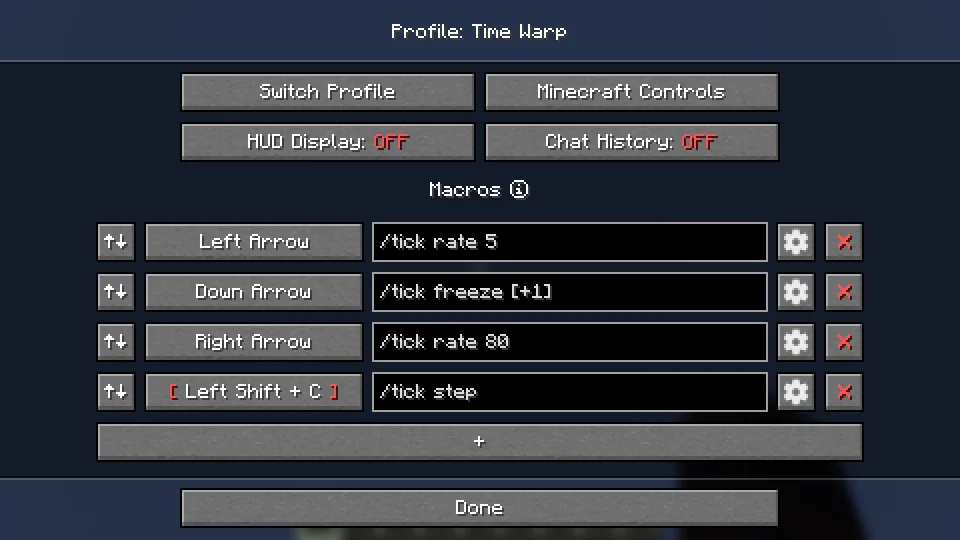
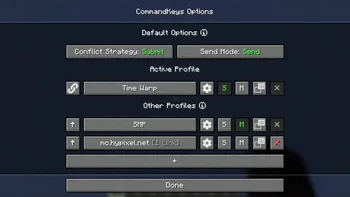
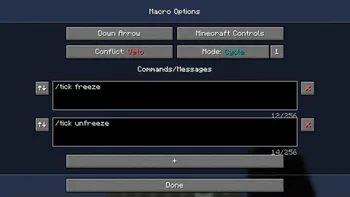
Command Keys screenshot 1Command Keys screenshot 2Command Keys screenshot 3

What it does

A powerful command macro mod.
Command Keys is a resource made by NotRyken. It supports Minecraft 1.19 – 26.x. It has been downloaded 3,226,152 times on Modrinth. The last update came out on Oct 9, 2026.

Supported versions

26.x1.211.201.19

Release history

Command Keys has had 231 releases on Modrinth since Jul 14, 2023. 66 of them came out in the past year. The newest is 3.104.1+26.3, released on Oct 9, 2026. It is made for Minecraft 26.3. It runs on Fabric. The download is 265 KB.

VersionReleasedMinecraftType
3.104.1+26.3Oct 9, 202626.3Release
3.103.2+26.2Oct 9, 202626.2Release
3.102.5+26.1.2Oct 9, 202626.1, 26.1.1, 26.1.2Release

Latest release on GitHub

Command Keys is open source. Its newest release on GitHub is v3.104.1+26.3-NeoForge, published on Oct 9, 2026.

Changelog

Before that: v3.104.1+26.3-Fabric (Oct 9, 2026), v3.103.2+26.2-NeoForge (Oct 9, 2026).

Description from the author on Modrinth

CommandKeys

A powerful command macro mod.

Features

  • Multiple commands per macro
  • Multiple macros per keybind
  • Optional delay timing between commands
  • Efficient keybind conflict management with modifier key support
  • Five modes:
  1. Send all commands when the key is pressed
  2. Cycle through commands, one per keypress
  3. Repeat on a configurable interval
  4. Select a random message and send
  5. Type the command in chat, but don't send it
  • Profiles with automatic switching based on server address or world name
  • Fully custom GUI for easy configuration

Usage

Profiles

Automatic Switching

  • When you join a world/server, the name/address will be checked against the list of profiles. If

there is a profile linked to that world/server, it will be activated. Otherwise, the default
profile will be used.

  • Use the S and M buttons to make a profile the default for singleplayer or multiplayer.

Manual Switching

  • To activate a profile manually, click the up-arrow button on the left.
  • Click the link button to link the profile to the world/server for future automatic activation.
  • Click the settings button to rename the profile or remove links.

Macros

Access

  • Edit a profile by clicking the large button on the profile selection screen, or by pressing the

edit key
(default: K) in-game.

Binding Keys

  • You can bind almost any keyboard key or mouse button to a macro, similar to Minecraft's own

Controls. However, you can also bind any pair of keys; just press one while holding the other (
e.g. press 'T' while holding
'Shift').

Conflict Strategy

  • If a key is already in use by Minecraft, you can choose a conflict strategy;
  • Submit: The macro will be ignored, the Minecraft keybind will function normally.
  • Assert: The macro and the Minecraft keybind will both function.
  • Veto: The macro will function, the Minecraft keybind will be cancelled (if possible).
  • Avoid: The macro will not work in-game, but you can still activate it by pressing the key

while on the edit screen (with nothing selected). For example, if you have a macro bound to W,
press K then W to activate it.

Send Mode

  • Send: All commands for the macro will be sent. You can configure delays between commands.
  • Type: The first command will be typed into the chat box, but not sent.
  • Edit: A GUI will be shown to allow you to enter a replacement for the %edit% placeholder, then

the first message will be sent.

  • Cycle: The commands will be cycled through, with one command sent each time you press the key.
  • Note: In Cycle mode, if you need more than one command to be sent for a single key-press, enter

those commands into a single box, separated by pairs of commas (e.g.
/tick freeze,,/say Stopped).

  • Random: A message will be chosen at random and sent each time the key is pressed.
  • Repeat: Like Send, but the macro will be repeated (delay is configurable) until you press the

key again.

Placeholders

  • Simple Placeholders
  • %lastsent%: The most recently-sent message or command in history, if any.
  • %lastcmd%: The most recently-sent command in history, if any.
  • %clipboard%: The contents of the clipboard, if any.
  • %myname%: Minecraft username.
  • %pmsender%: The name of the sender of the most recently-received private message, if any. (

Searches max of 50).

  • %pos%: The integer coordinates of the player (x y z).
  • %x%: The integer X coordinate of the player. Also available for Y and Z.
  • %lpos%: The integer coordinates of the block the player is looking at, if any. Also provides

%lx%, %ly%,
%lz%.

  • Regex Placeholders
  • %#(.*)%: Regex Group 1 from the most recently-received message matching the regex following

the #, if any. Note: regex pattern must have at least 1 capturing group.

  • %clipboard#(.*)%: The contents of the clipboard, if any, verified to match a regex pattern

following the

. This can be used to prevent unintentional exposure of clipboard contents. E.g. use

%clipboard#^-?\d+ -?\d+ -?\d+$% to only send the clipboard contents if it's formatted like a
set of coordinates.

  • %pos([FBLR])(\d+)%: %pos% but offset some number of blocks in a direction relative to the

cardinal direction that the player is nearest to facing. E.g. use %posL20% to get the
coordinates 20 blocks to the player's left.

  • %x([+-]\d+)%: %x% but offset some number of blocks. E.g. use %x-10% to get the X

coordinate 10 blocks to the player's West. Also available for Y and Z.

  • %lpos([FBLR])(\d+)%: As per pos above but for the block the player is looking at, if any.
  • %lx([+-]\d+)%: As per x above but for the block the player is looking at, if any.

Dependencies

Fabric: Fabric API, ModMenu

NeoForge: None

Compatibility

If you encounter issues, please report on Discord or GitHub.

Contact

Written by NotRyken. Read it with pictures on Modrinth.

How to install Command Keys

  1. This mod runs only on your own game. Servers do not need it, so you can use it on any server.

  2. Install Fabric, Quilt, Forge and NeoForge for Minecraft 1.19 – 26.x.

  3. Add the mods it needs: Mod Menu.

  4. Download the .jar file from Modrinth and put it in the mods folder of your .minecraft directory.

  5. Start Minecraft with the Fabric profile.

  6. With the CraftRank Launcher you can skip these steps: open Mods, search for Command Keys and click Install.

Compatibility

Minecraft versions
26.x, 1.21, 1.20, 1.19
Runs on
Fabric, Quilt, Forge, NeoForge
Where it runs
Client only (your game)
Edition
Java
Needs
Mod Menu
License
Free to use
Price
Free
Upkeep
Actively updated (Nov 10, 2026)

Questions

Does Command Keys work on Minecraft 26.x?

Yes. Command Keys supports Minecraft 26.x. All supported versions: 26.x, 1.21, 1.20, 1.19.

Is Command Keys free?

Yes. Command Keys is free to download from Modrinth.

Is Command Keys client-side or server-side?

Client-side. Command Keys goes in your own mods folder and works on any server, including servers without mods.

Does Command Keys need anything else?

Yes: Mod Menu. Install it before Command Keys.

Is Command Keys still updated?

Yes. The last update came out in the past day.

Reviews

–★★★★★
0 reviews
50
40
30
20
10

Log in to leave a review.